
Gamification and competitions are useful not only in the educational sphere, but in the business world as well. There’s nothing quite like a friendly competition to get people involved and engaged. The following steps will show you how to set up competition questions for your next presentation.
Creating a competition
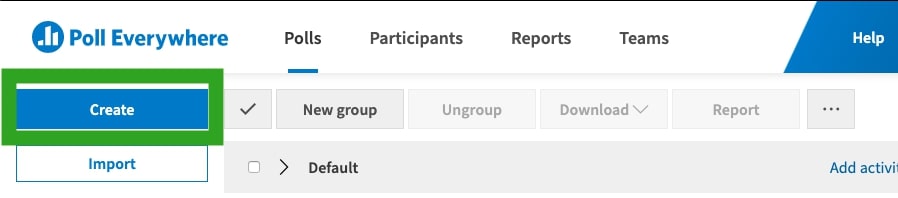
Step 1: To create a competition, tap the Create button at the top left of your My Polls page.
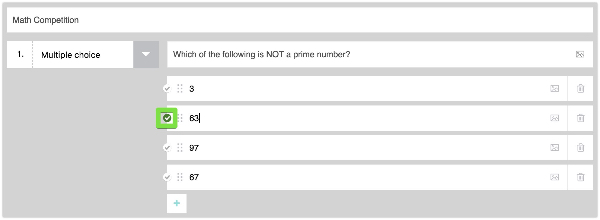
Step 2: Select Competitions then enter your question and possible answers.
Helpful tip: You will only be able to use multiple choice questions in competitions.

Step 3: Designate the correct answer by clicking the circular check mark symbol to the left of the answer.
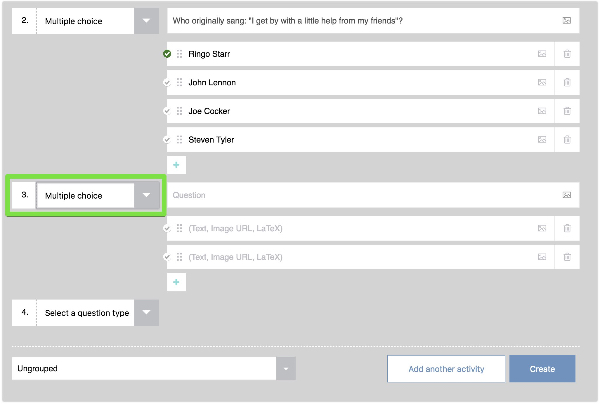
Step 4: Add additional questions to your competition by selecting Multiple choice in the next question type field.
Helpful tip: You can add your competition to a preexisting group of activities using the dropdown menu to the left of the Create button.
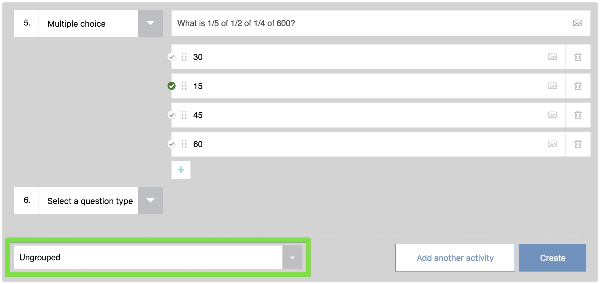
Step 5: Once you are done adding questions, click the Create button at the bottom right. You will be immediately taken to the competition slideshow page.
Edit your Competition
Step 1: Select the competition activity on your My Polls page.
Step 2: Select the slide you want to edit.
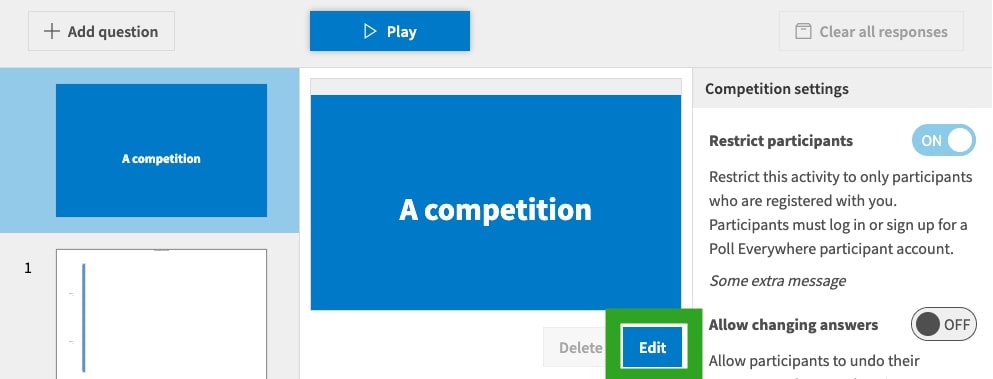
Step 3: Click the Edit button under the slide preview on the bottom right.
Step 4: When you’re finished editing, click the Save button near the bottom right.
Delete a question
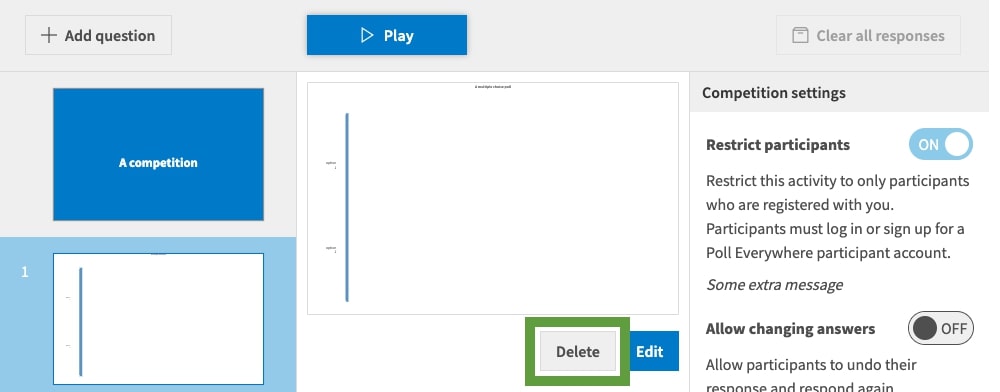
The Delete button at the top right will delete a slide from your competition. Keep in mind that this is a hard delete. There is no recycle bin where deleted data can be recovered, so be certain before you delete any of your slides.
Add a question
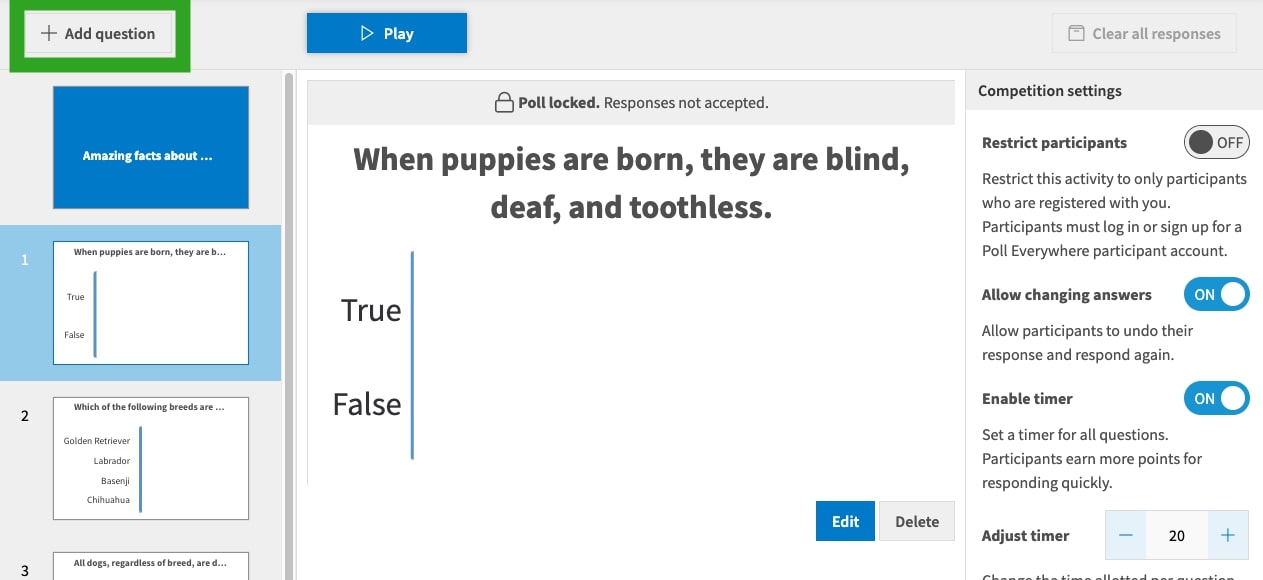
Click the Add question button at the top right of the competition edit screen to add a new question slide to an existing competition. The new slide will be added to the end of your competition.
Helpful tip: You can rearrange the questions in your competition by dragging and dropping them in the slide overview on the left side of the page.
Rearrange the questions
If you decide you want to run your competition in a different order, you can drag and drop the slides to rearrange the questions in your competition.

Clear
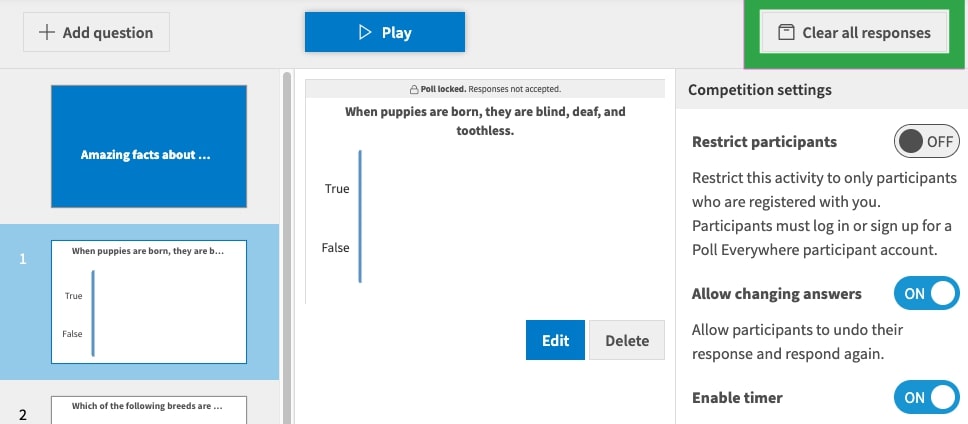
The Clear responses button at the top right of the competition edit page will clear all the responses to your competition and enable you to run the competition another time. Please note, this clears all the responses for the entire competition, not just the slide you’re currently focused on.
Comments
Please sign in to leave a comment.