
Creating a Poll
- Go to My Meetings page and click on your scheduled meeting. If you do not have a scheduled meeting, schedule a meeting now.
- From the meeting management page, scroll to the bottom to find the Poll option. Click Add to begin creating the poll.

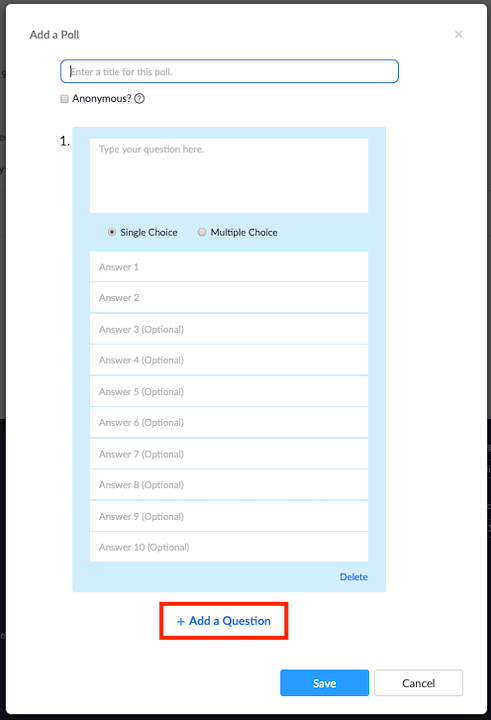
- Enter a title and your first question. You can mark the question as a single choice or multiple choice question.
- Type in the answers to your question and click Save at the bottom.
- If you would like to add a new question, please click Add a Question to create a new question for that particular poll.
- You can add more polls by repeating Step 2.
Note: You can only create a max of 25 polls for a single meeting.
Comments
Please sign in to leave a comment.